Part 2 · Offloading
Cards
Everything Sansfer backs up starts as a card in the left column: a camera card, a recorder's card, a drive or any folder.
Inserting a card
When you insert a camera card, Sansfer adds it to Cards by itself and reads it. Reading lists every file and folder, adds up the size and works out what the card is. Large cards take a few seconds; the row shows Reading the card… with the files and data found so far. Nothing on the card is changed.
Cards appear automatically only when Show camera cards automatically when they are inserted is on in Settings › General (it is, unless you turned it off). Sansfer recognises a camera card by its folder structure, so an ordinary USB stick or backup drive is not added by itself.
Adding a folder or drive yourself
Anything with media on it can be a card: a recorder connected over USB, a camera mounted as a drive, a folder on a NAS, or files someone sent you. Click + at the top of Cards:
- Choose Folder… opens a window to pick one or more folders (⌘ O).
- Mounted Volumes lists every connected drive and card. Pick one to add it.
You can also drag folders or drives from the Finder onto the Cards column.
What Sansfer recognises
Sansfer reads the structure and the metadata the camera or recorder wrote, and shows what it found in plain words, such as Sony FX9 · 6 clips · 79.9 MB or Sound Devices 888 recorder · 4 recordings.
| Kind of card | How Sansfer recognises it |
|---|---|
| Sony cinema and broadcast cameras (FX9, FX6, FX3, VENICE, XDCAM) | The XDROOT and PRIVATE/M4ROOT structures, and the camera model and serial number in each clip's M01.XML. |
| Canon Cinema EOS | XF-AVC (CONTENTS/CLIPS001) and Cinema RAW Light (.CRM). |
| ARRI | ARRIRAW files. For Apple ProRes cards you choose the label yourself (see the next chapter). |
| RED, Blackmagic Design | R3D reels (.RDM, .RDC) and Blackmagic RAW (.braw). |
| Panasonic | P2 cards (CONTENTS) and the Panasonic video and photo folders. |
| Sound recorders (Sound Devices, ZOOM, Zaxcom and others) | Broadcast Wave files: the recorder's name in the files, and cards with only audio. |
| Stills cameras | The DCIM folder and RAW formats, and the make, model and serial number in each photo, from Sony, Canon, Nikon, Fujifilm, Panasonic and others. |
| DJI, GoPro | Their DCIM folders; their cards are suggested as Drone and GoPro. |
The icon of a card follows what is mostly on it: a video camera for clips, a photo camera for stills, a waveform for sound recordings. A card with a mix (a stills camera that also films, for example) gets the icon of what it holds most of.
A card Sansfer does not recognise is still backed up completely. It just has no camera name, and in a project you choose its label yourself.
What is copied
Sansfer copies the complete card structure exactly as it is: clips, audio, XML, sidecar files, proxies, thumbnails and hidden camera metadata. Many applications need that structure to read a card, so nothing is left out or rearranged. Only operating-system housekeeping is skipped: .DS_Store, AppleDouble ._ files and Spotlight and Trash folders. You can switch that off in Settings › General. Symbolic links are never followed, so nothing from outside the card is copied.
To copy only some files, for example only the photos from a card, use the file selection in Settings › Transfers or a preset such as Photography import.
Selecting cards
Click a card to select it; click again to leave it out. A selected card gets a panel in Transfers and is included when you press Back Up. A card that was just backed up is deselected by itself.
The state on the right of each card tells you where it stands:
| Ready | Selected, read and ready to back up. |
| Label? | In a project, the card still needs a label (see the next chapter). |
| Waiting | In the queue, after the card that is being copied now. |
| 41% | Being copied and verified. |
| Done | Backed up and verified, now or at an earlier time. |
| Offline | The card was removed. It stays in the list until you remove it. |
| Error | The card could not be read. Point at the row to see why, then use Read Again. |
The card menu
Click the ⋯ button on a card, or right-click it:
| Select / Deselect | Include the card in the next backup, or leave it out. |
| Show in Finder | Opens the card in the Finder. |
| Preview Clips… PRO | A still of every clip, to skim through before you copy (see Previewing clips). |
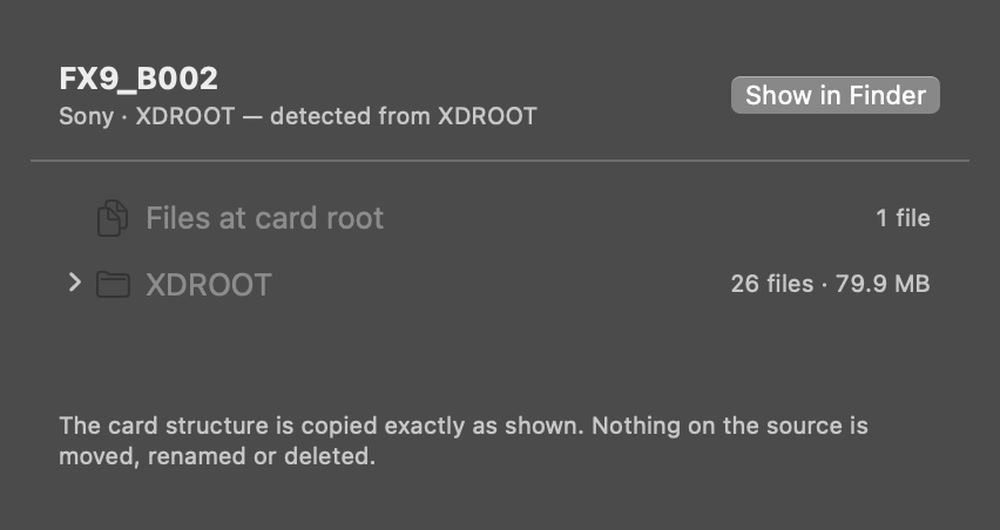
| Preview Structure… | The folders and files that will be copied. |
| Read Again | Reads the card again, for example after files were added. |
| Eject | Ejects the card so it can be taken out. Not available while it is being copied. |
| Remove from List | Takes the card out of Sansfer. Nothing on it is changed. |
Preview Structure
Shows the card's folders and how many files each holds, exactly as they will be copied. A Sony FX9 card, for example, has its clips in XDROOT/Clip, proxies in XDROOT/Sub and thumbnails in XDROOT/Thmbnl. Everything is copied as shown; nothing on the source is moved, renamed or deleted.
A card that was backed up before
Sansfer remembers every card it has backed up and verified. When the same card is inserted again, its panel says so, for example Already backed up on 18 Nov 2026 at 09:34. If you back it up again to the same folder, identical files are checked rather than copied again, so nothing is duplicated.