Part 2 · Offloading
When a transfer is done
Safe to erase means every file on every drive was read back and matches the card. This chapter covers what you see then, and what Sansfer wrote to the drives.
Safe to erase
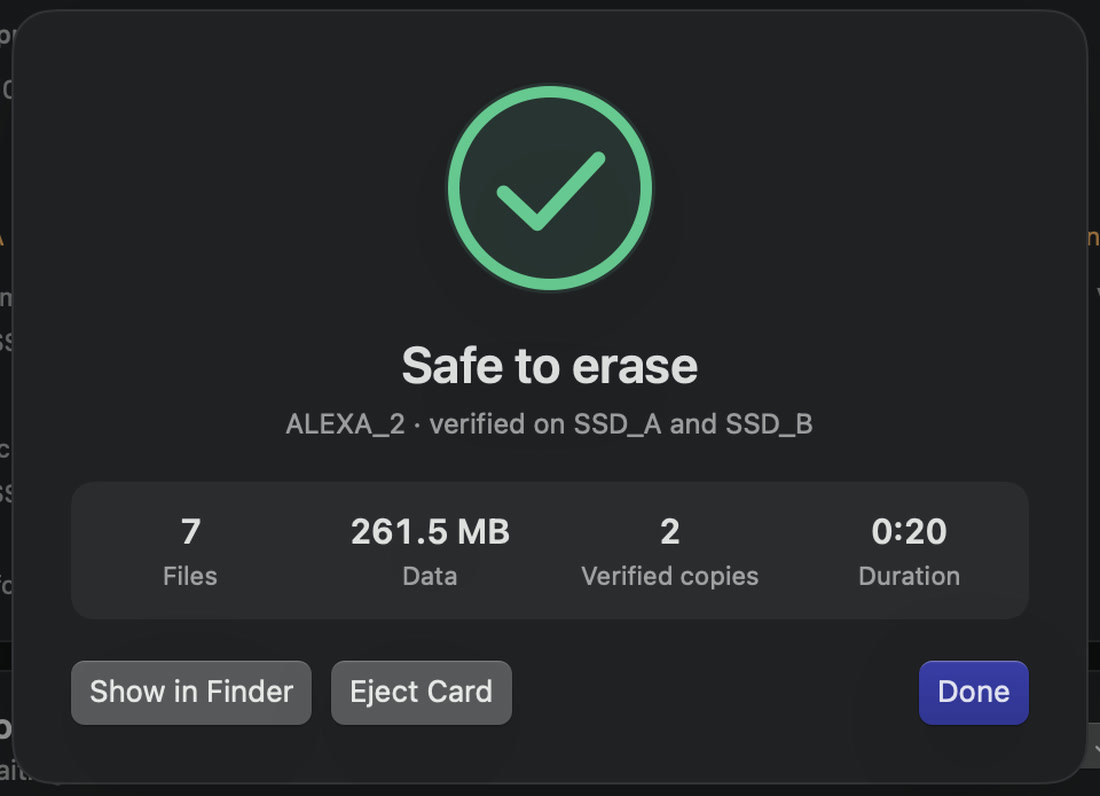
When the last file of a card is verified on the last drive, Sansfer shows Safe to erase with the card, the drives it was verified on, the number of files, the data, the verified copies and how long it took. A chime plays (you can switch it off in Settings › General).
- Show in Finder opens the card's folder on the first drive.
- Open Report opens the PDF report, when one was saved.
- Eject Card ejects the card so you can take it out.
- Done closes the message.
The Done list
Finished transfers move to Done at the bottom of Transfers, with their result and the time they finished: Safe to erase · 2 copies verified, or Incomplete or Cancelled. Click a row for the full result:
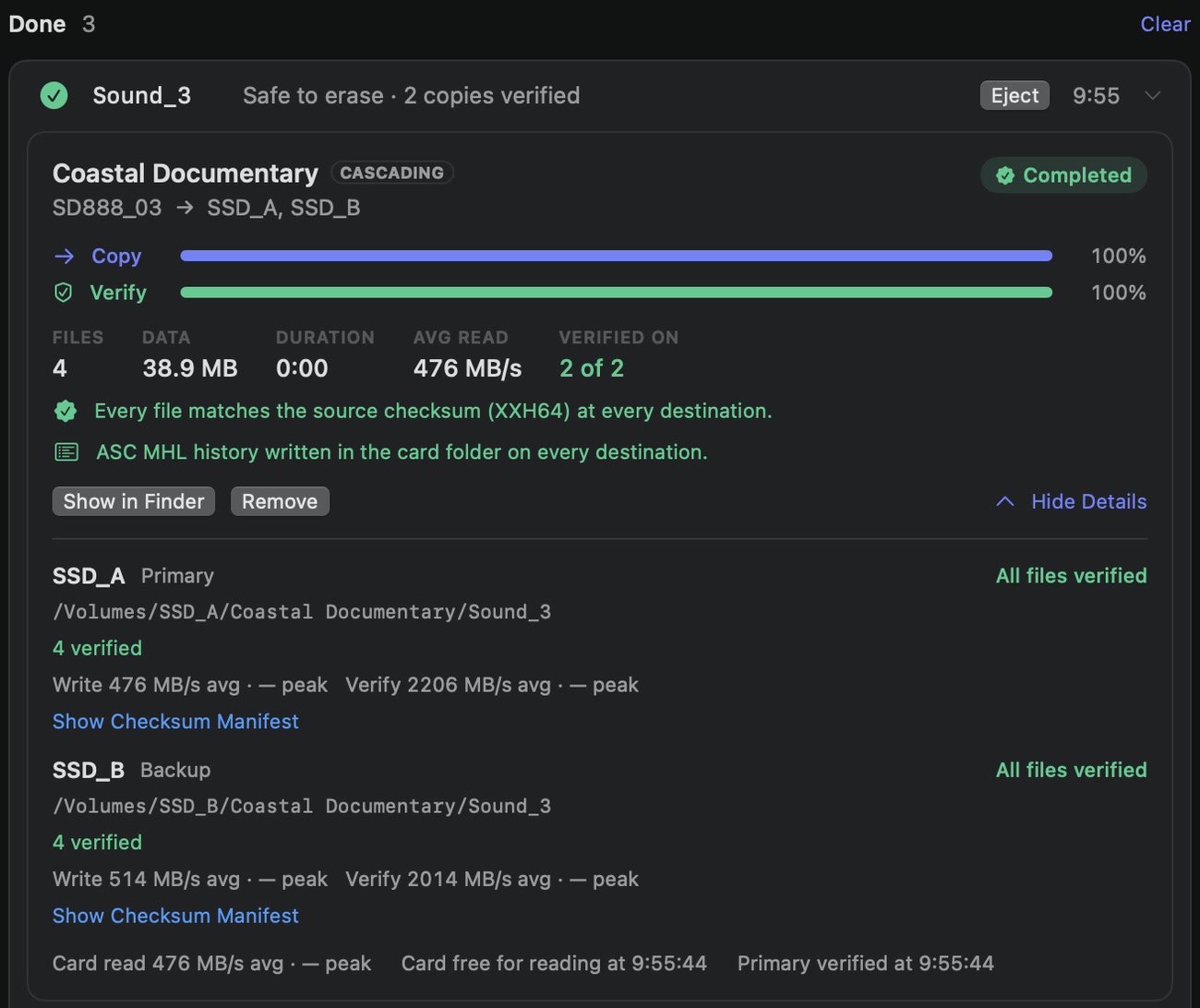
- Every drive with its folder, its result, the files verified, identical and skipped, or failed, and its write and verify speeds.
- When the card was free for reading and, in cascading mode, when the primary was verified.
- Whether an ASC MHL history was written.
- Show in Finder and Show Checksum Manifest for each drive.
- Retry Failed Files or Try Again when the transfer did not complete.
Clear empties the list. The transfers stay in History.
What is on the drives
Every card lands in its own folder, with the card's complete structure inside. Next to the footage Sansfer adds:
| Folder or file | What it is |
|---|---|
_Sansfer/ | The checksum manifest of this transfer, as a .json file and as a plain list (.sha256 or .xxh64) that other tools can check. |
ascmhl/ | The ASC MHL history, when ASC MHL is on PRO. |
Sansfer Report … VERIFIED.pdf | A report, when reports are switched on in Settings or the preset. It can be saved in the card folder or in a _Sansfer Reports folder in the project folder. |
For example, the second ALEXA card of Coastal Documentary on SSD_A:
SSD_A/
└── Coastal Documentary/
    └── ALEXA_2/
        ├── A002C001_261117_R1AB.mov
        ├── A002C002_261117_R1AB.mov
        ├── …
        ├── _Sansfer/
        │   ├── Sansfer_20261118-094012_7C1E33A0.json
        │   └── Sansfer_20261118-094012_7C1E33A0.xxh64
        └── ascmhl/
            └── 0001_ALEXA_2_2026-11-18_084012Z.mhl
How to check a manifest yourself, and what is in a report, is explained in Reports, manifests and ASC MHL.
Ejecting the card
Eject the card with Eject Card, with Eject in the card's menu, or in the Finder. Then, and only in the camera, you may format it.