Part 2 · Offloading
Running a transfer
Press Back Up and Sansfer checks everything first, then copies, verifies and shows you exactly where every card and every drive stands.
Starting
There are three ways to start:
- The big button in the bottom bar backs up every card that is ready. It says how many: Back Up 3 Cards (⌘ ↩).
- The button in a card's panel backs up only that card, and names the drives: Back Up to SSD_A and SSD_B.
- Transfer › Start Transfer in the menu bar does the same as the big button.
When a card is backed up, it leaves the selection and its transfer appears in Transfers. Several cards are copied one after another, in the order you started them (you can run more at once in Settings › Transfers).
The checks before a transfer
Before a single byte is written, Sansfer checks the whole transfer. A card whose checks fail cannot start; the buttons are dimmed and point at them to see why. The checks:
- The card is connected and readable, and there is at least one drive.
- Every drive is connected, Sansfer may write to it and the folder can be created there.
- There is enough space on every drive, for every card in the transfer together.
- The card is not copied into itself, and no drive is inside the card.
- The drive can store the files: FAT32 cannot hold files over 4 GB, for example.
- In a project, the card has a label.
- When files are renamed, every file gets a name of its own.
Warnings, such as two copies on one disk or ASC MHL with SHA-256, do not stop a transfer. They are shown on the card or the drive so you can decide.
Following a transfer
 1
2
3
4
5
6
7
8
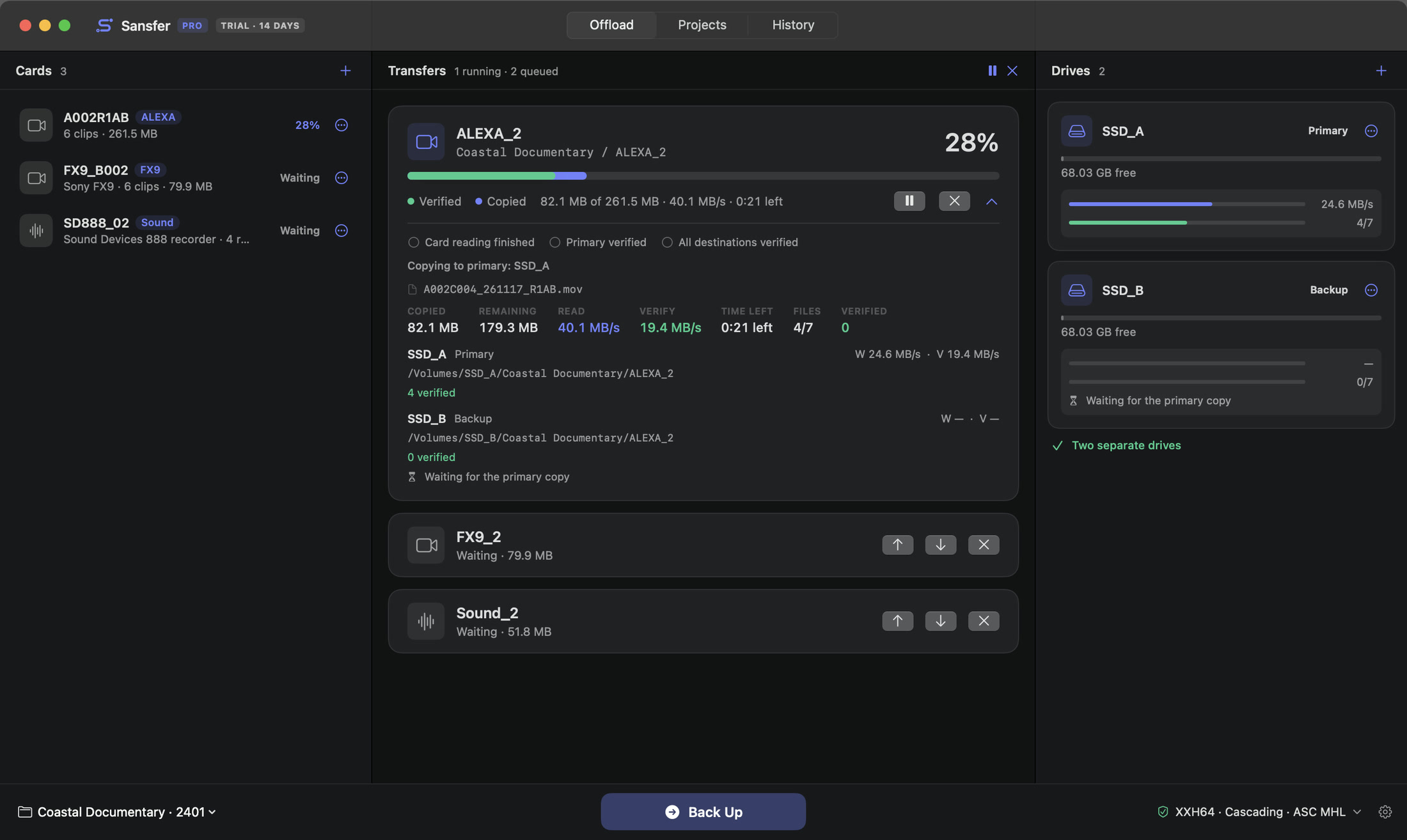
- 1The transfer: the card's label and the folder it goes to on every drive.
- 2Progress over all drives together, copied and verified.
- 3The bar: blue is copied, green is verified. Green always follows blue.
- 4Pause, cancel and show or hide the details.
- 5The details: the three moments, what Sansfer is doing now and the figures.
- 6The queue: cards that wait their turn.
- 7Each drive with its own copy and verify bars. The backup waits for the primary.
- 8Pause all and cancel all transfers.
Under the bar Sansfer shows the data done, the speed and the time left, for example 108.9 MB of 261.5 MB · 30.6 MB/s · 0:12 left. The percentage counts both copying and verifying, so it reaches 100% only when every copy is checked.
Details
Click the arrow on a transfer for its details:
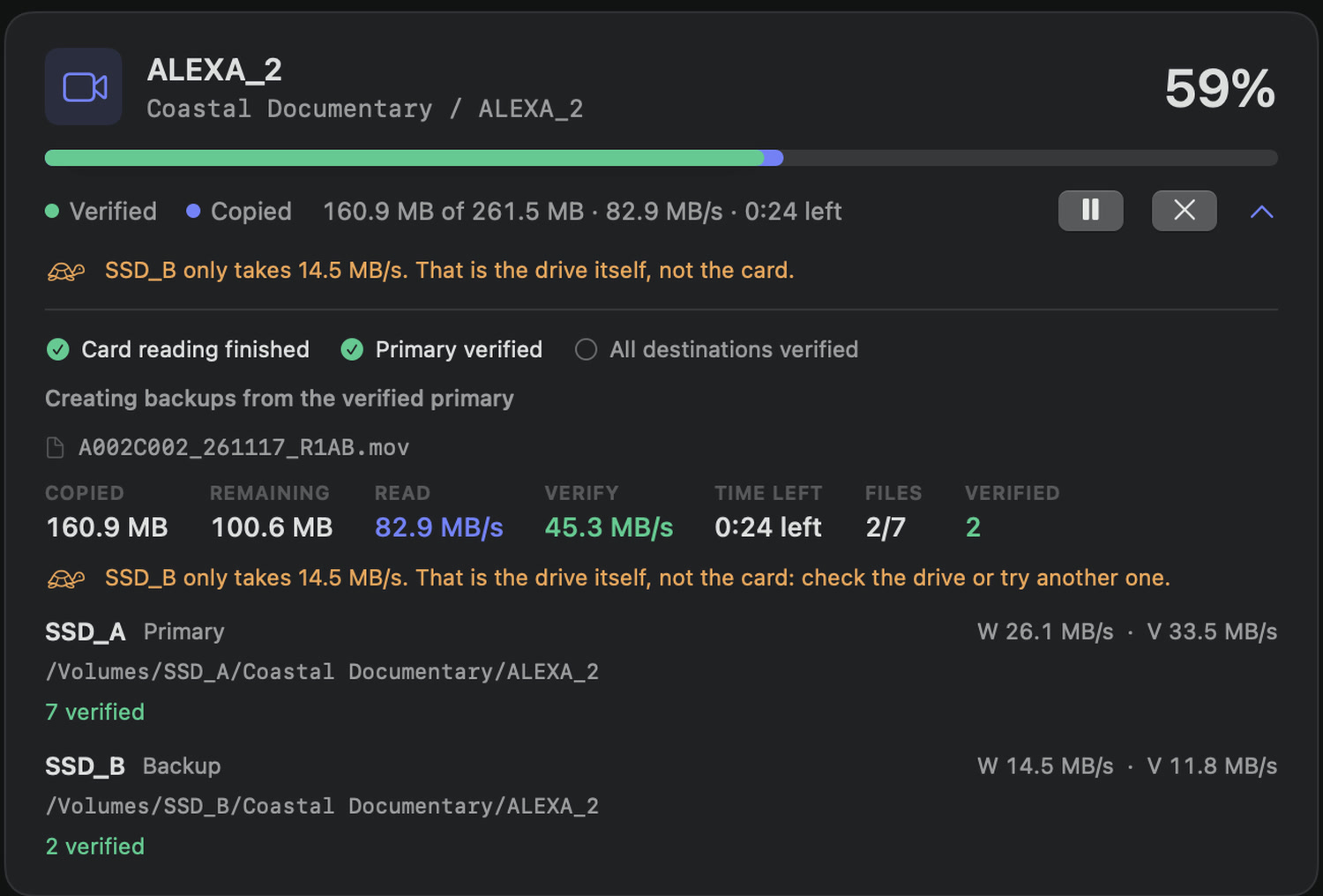
- Three moments: Card reading finished (the card is no longer read), Primary verified (in cascading mode) and All destinations verified. Only the last one means the card may be cleared.
- What Sansfer is doing now, and the file it is on.
- The figures: copied, remaining, read and verify speed, time left, files done and files verified.
Pausing and cancelling
Pause a transfer with its pause button, and continue with the same button. Transfer › Pause All and Resume All do the same for every transfer. A paused transfer keeps its place; nothing is lost.
Cancel with the × button, or all transfers with Transfer › Cancel All…. Sansfer asks first. When you cancel, files that were verified stay at their destinations, unfinished files are removed, and the card is not changed. The record of the transfer says Cancelled.
The queue
Cards that wait their turn are listed under the running transfer with their size. Use the arrows to move a card earlier or later in the queue, and × to take it out of the queue. You can add cards while a transfer runs: insert them, check their labels and press Back Up again. They join the end of the queue.
A slow drive
A transfer goes as fast as its slowest drive. When one drive holds the others back, Sansfer says so on the transfer, for example SSD_B only takes 38 MB/s. That is the drive itself, not the card. Check the drive, its cable or its port, or use cascading mode so the card is free sooner.
When files fail
If a file cannot be copied or does not match the card, it is not put in place, and the transfer continues with the other files: 2 file(s) failed so far. The rest continue. At the end the transfer is Incomplete and lists the files that were not verified everywhere, with the reason. Choose Retry Failed Files to copy just those again. If it keeps failing, the drive, cable or card reader may be failing; see Troubleshooting.
Quitting during a transfer
If you quit Sansfer while transfers run, it asks first. Quitting cancels them: verified files stay at their destinations, unfinished files are removed, and source media is never modified. If Sansfer, the Mac or a drive stops unexpectedly instead, the transfer can be resumed (see Interrupted transfers).