Part 1 · Getting started
04
Your first backup
From card to two verified drives in eight steps. This is the whole workflow; the rest of this guide adds detail to each step.
- Connect your drives. Use two drives that are physically separate, for example two SSDs, or an SSD and a RAID.
- Add the drives to Sansfer. Click + at the top of Drives and choose a folder on each drive, or the drive itself. The first drive gets the role Primary, the next Backup. Sansfer remembers them.
- Insert the card. It appears in Cards within a few seconds and Sansfer reads it: the camera, the clips, the size. No card reader at hand? Click + above Cards and choose a folder.
- Check what the card is. In the card's panel the label is chosen for you when Sansfer recognises the camera, such as FX9. If it is not, click a label or type a new one under What is this card?
- Check where it goes. The panel shows the folder the card will land in on every drive, for example
Coastal Documentary / FX9. Free space is checked for you. - Press Back Up. Use the big button in the bottom bar (⌘ ↩) or the button in the card's panel. Before anything is written, Sansfer checks space, permissions, names and paths. If a check fails, the button tells you why.
- Follow the transfer. The bar fills in blue as data is copied and in green as copies are verified. You can pause or cancel at any time; nothing on the card is ever touched.
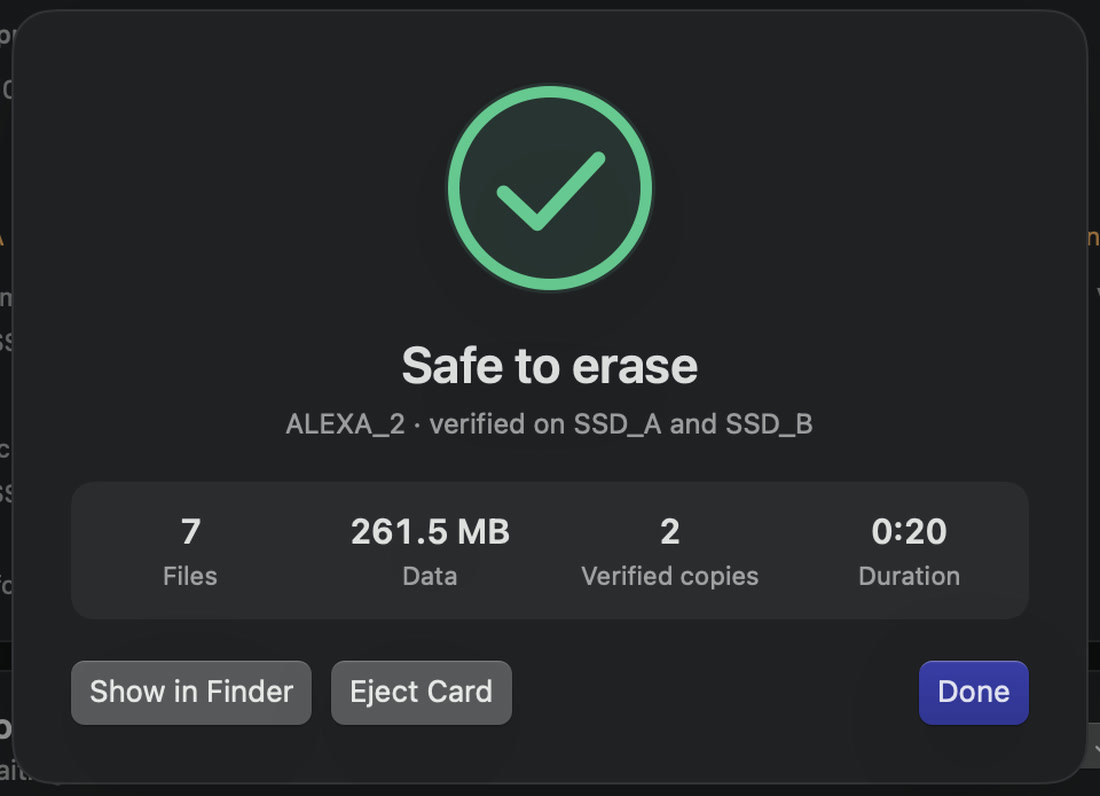
- Wait for Safe to erase. When every file on every drive matches the card, Sansfer shows Safe to erase. Eject the card. Only now may it be formatted in the camera.
TipBack up several cards at once: insert them all, check their labels and press Back Up 3 Cards. They are copied one after another, in the order of the list, so the drives are never fought over.
Before you format a cardFormat a card only after Safe to erase, and only when the copies are on two separate drives. If all copies are on one physical disk, Sansfer says so and advises you to keep the card until a second drive has a copy.