Part 1 · Getting started
Installing and first launch
Install Sansfer like any Mac app. The first time you open it, four short screens explain what it does and help you add your first drives.
Installing Sansfer
- Download Sansfer from sansfer.com. The download is a disk image (.dmg).
- Open the disk image and drag Sansfer onto Applications.
- Eject the disk image and open Sansfer from your Applications folder.
Sansfer is signed and notarised by Apple, so macOS opens it without warnings. It updates itself later (see Licenses, trial and updates); you never need to download it again.
The welcome screens
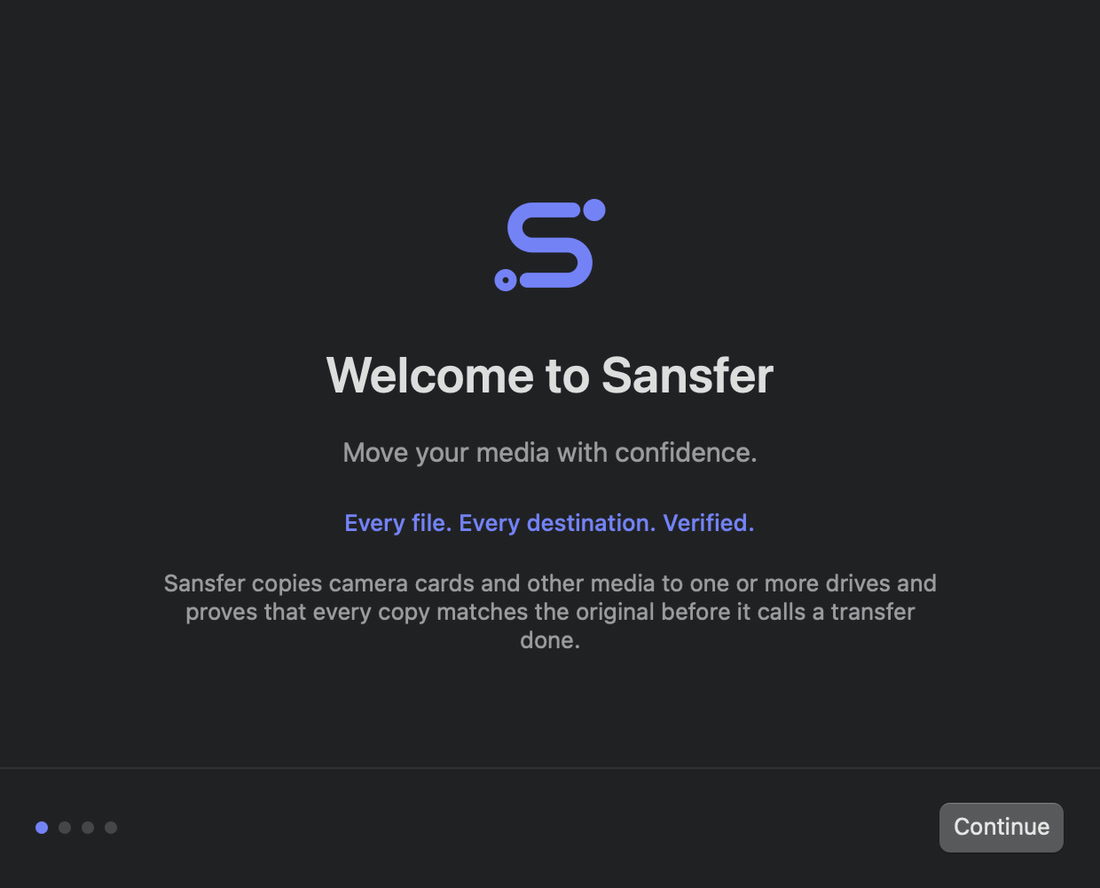
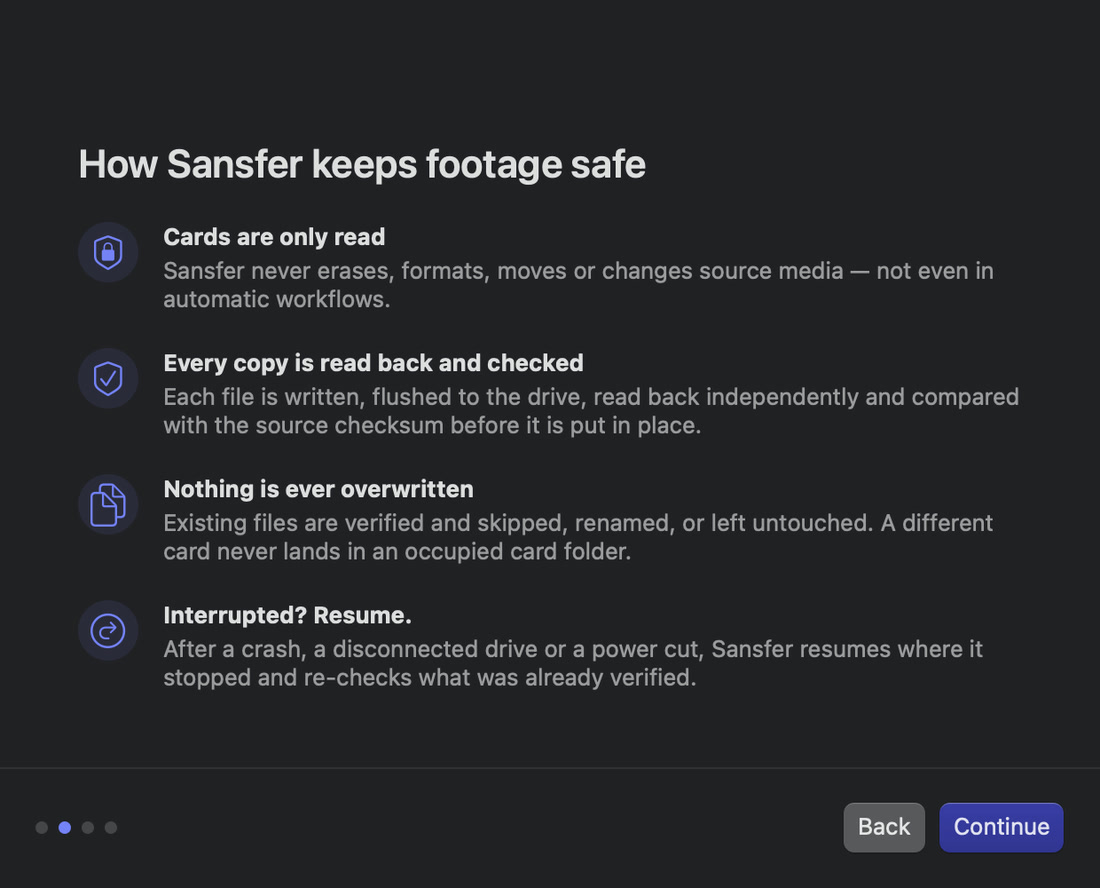
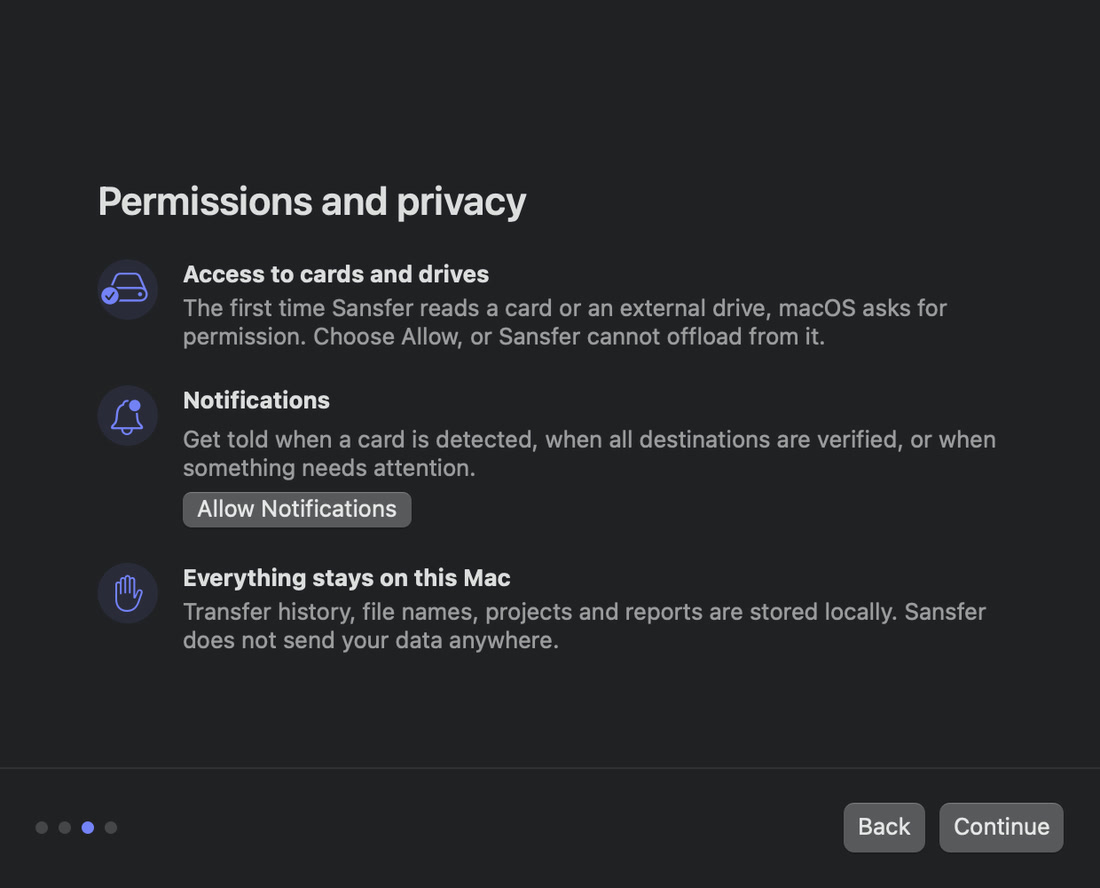
The first time you open Sansfer, a short introduction appears. Move through it with Continue and Back. You can open it again at any time with Help › Welcome to Sansfer….
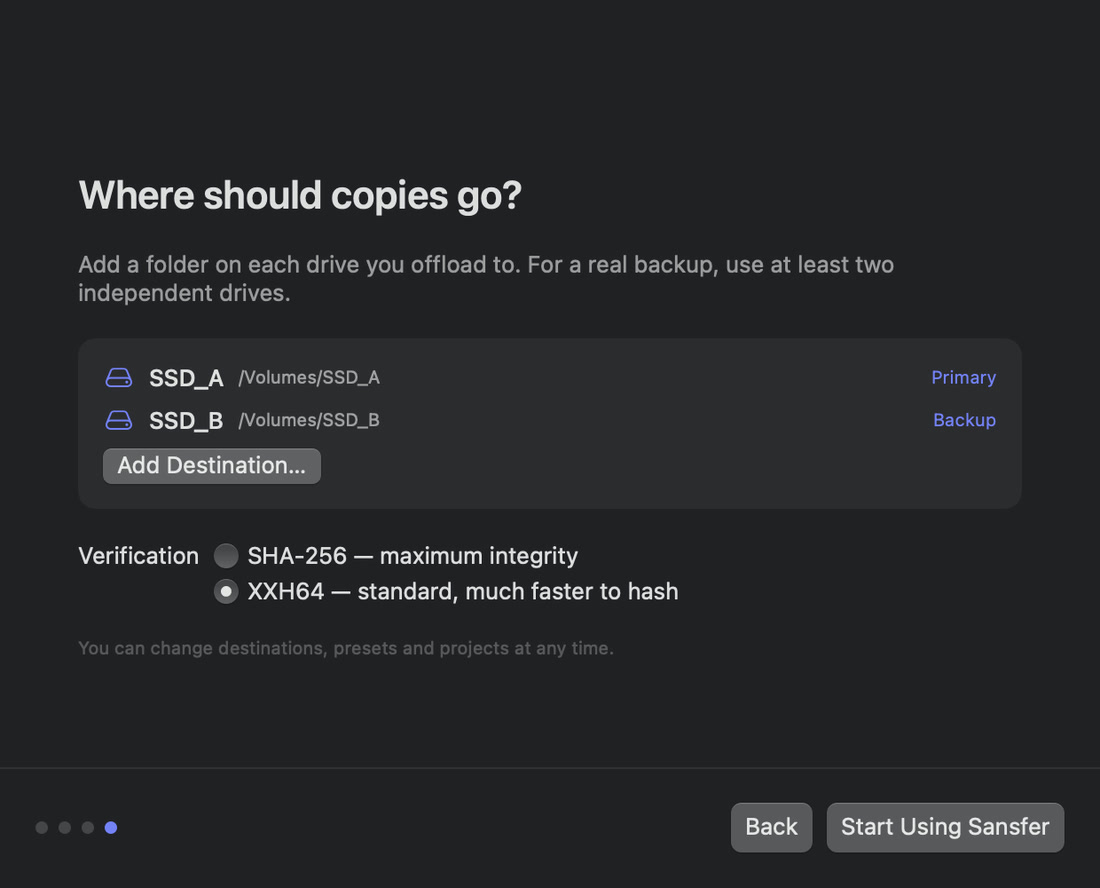
The last screen, Where should copies go?, asks for a folder on each drive you offload to, and which checksum to use for verification. Both can be changed at any time, so if you are not sure, add your drives later and keep the default. Click Start Using Sansfer to finish.
Permissions
macOS protects removable drives and notifications. Sansfer asks for each once:
- Access to cards and drives
- The first time Sansfer reads a card or writes to an external drive, macOS asks whether Sansfer may access files on a removable volume. Choose Allow, or Sansfer cannot offload from it. If you chose otherwise, change it in System Settings › Privacy & Security › Files and Folders.
- Notifications
- Sansfer can tell you when a card is detected, when all destinations are verified, and when something needs attention. Allow notifications on the third welcome screen or when macOS asks. Which notifications you get is set in Settings › General.
The 14-day trial
For the first 14 days every feature of Sansfer Pro is available, counted from the first time you open Sansfer. The badge next to the name in the top bar shows how many days are left. After the trial, you need a license to start new transfers. A transfer that is running or interrupted always finishes, and your history and reports stay available. See Licenses, trial and updates.