Part 4 · Records
18
History
PRO Every transfer made on this Mac, with the checksum and result of every file. Search it, reopen any transfer and export its report.
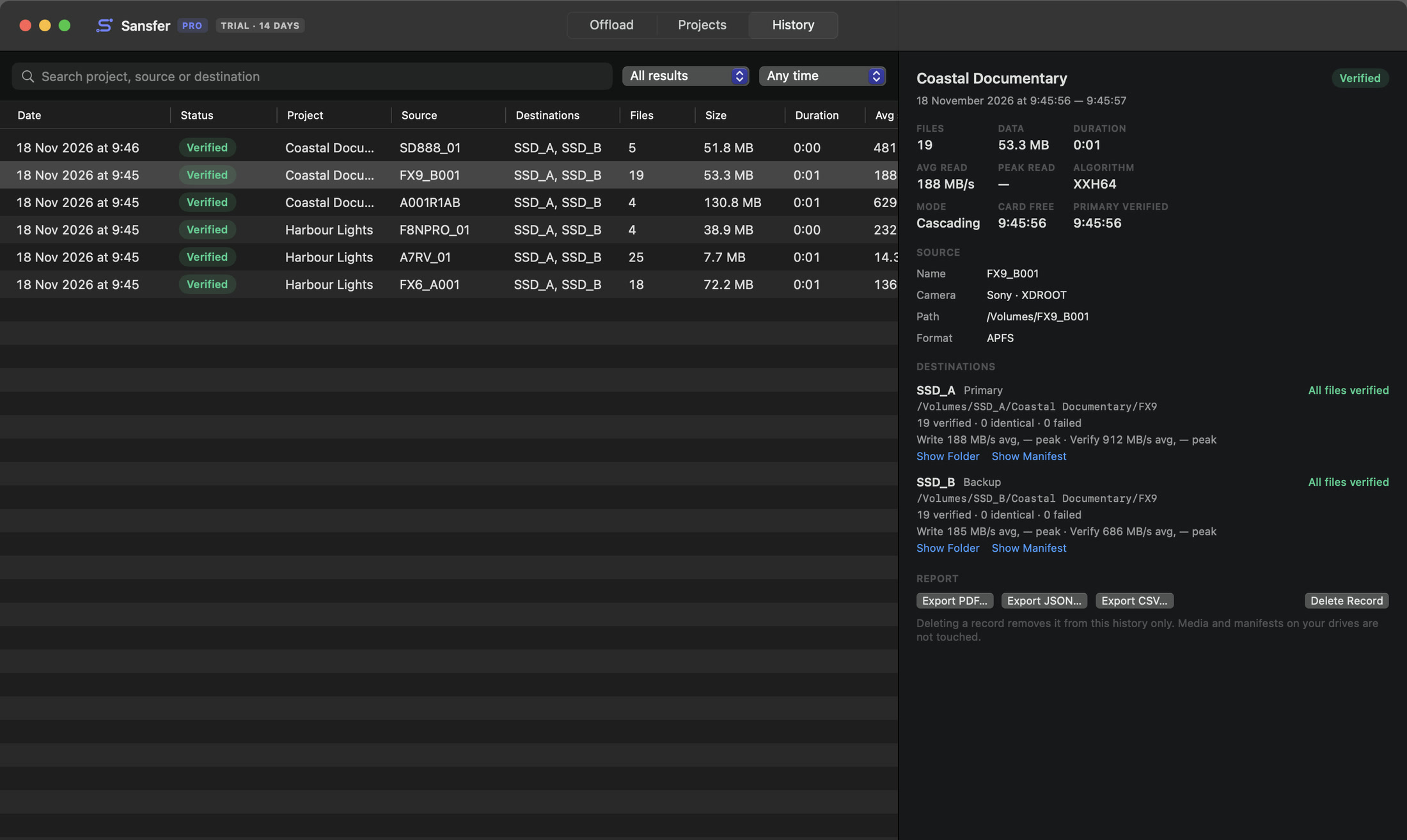
Finding a transfer
Open History in the top bar (⌘3). Every transfer is listed with its date, result, project, card, destinations, number of files, size, duration and average speed. Click a column header to sort.
- Type in the search field to find a project, card or drive.
- Filter on the result: Verified, Failed or Cancelled.
- Filter on the date: Today, Last 7 days or Last 30 days.
The details of a transfer
Select a transfer to see everything about it on the right:
| Summary | Project, start and end time, and the reason if it did not complete. |
| Figures | Files, data, duration, average and peak read speed, checksum, copy order, when the card was free for reading and when the primary was verified. |
| Source | The card's name, format, path and volume ID. |
| Destinations | Every drive with its role, result, folder, files verified, identical and skipped or failed, and its write and verify speeds. Show Folder and Show Manifest open them in the Finder. |
| Files not verified everywhere | For an incomplete transfer: every file that failed, with the drive and the reason. |
| Warnings | Anything Sansfer warned about during the transfer. |
| Report | Export the report, and the report files that were saved automatically. |
Exporting a report
Under Report, choose Export PDF…, Export CSV… or Export JSON… and pick where to save it. Reports can be exported for any transfer, at any time, also when no report was saved automatically. What each one holds is in the next chapter.
Deleting a record
Delete Record removes a transfer from this history only. Media, manifests and reports on your drives are not touched.
Where History is keptHistory, projects and presets are stored on this Mac, in
~/Library/Application Support/Sansfer. They survive updates. Settings › Advanced › Data shows the history database in the Finder.