Part 2 · Offloading
Drives
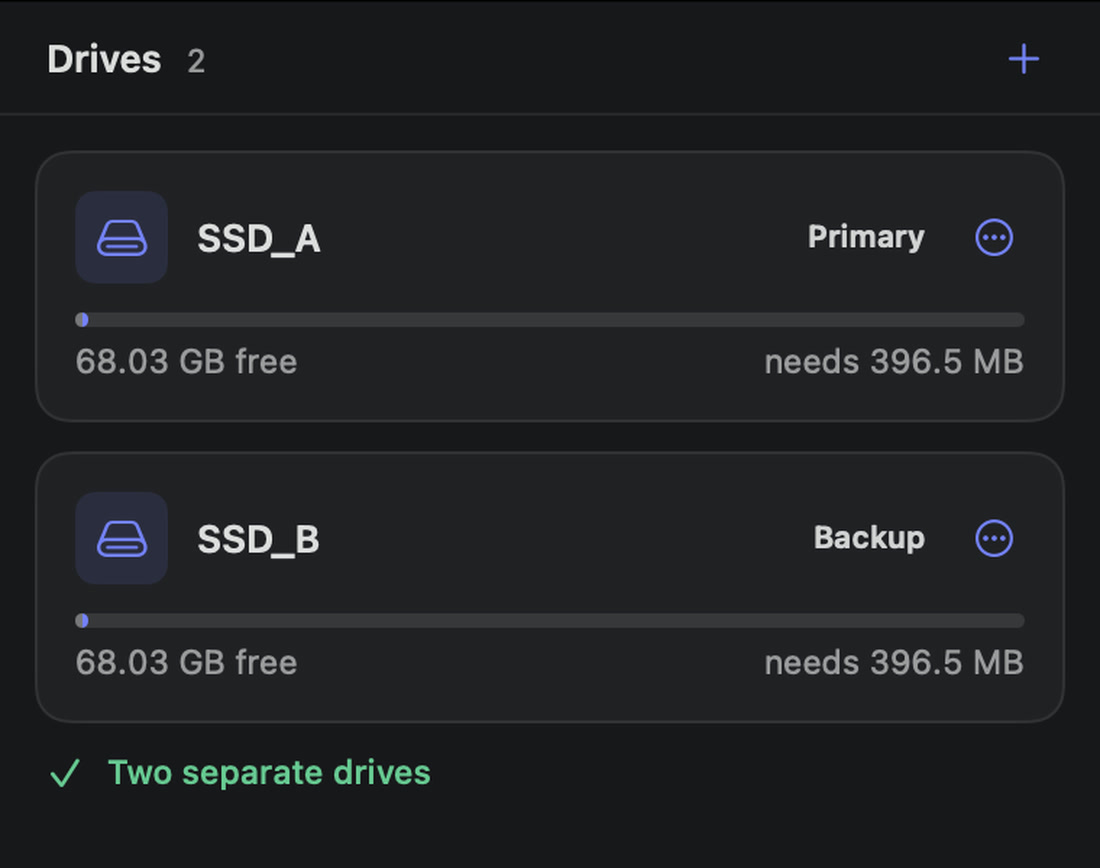
The right column holds the destinations: a folder on every drive a card is copied to. Sansfer remembers them, checks their space and tells you when two copies would share one disk.
Adding a drive
Click + at the top of Drives:
- Choose Folder…: pick a folder on a drive, or the drive itself (⇧ ⌘ D).
- Favorites: folders you marked as favorite.
- Recent: folders you used before.
You can also drag a folder from the Finder onto the column. Every card lands inside the folder you choose, in its own subfolder.
Roles
Every drive has a role. The first drive you add is Primary, the next ones Backup. Click the role on a drive to change it:
| Primary | The main working copy. In cascading mode it is filled and verified first, and the other copies are made from it. |
| Backup | A second (or third) copy, ideally on another physical drive. |
| Archive | A long-term copy, for example a RAID, NAS or LTO staging folder. |
| Custom… | Your own name, for example Client drive or LTO staging. |
The role appears in the PDF report and the manifests, so it is clear later which copy was which.
Space
Each drive shows how much space is free, and as soon as cards are selected, how much the transfer needs. Before anything is written Sansfer checks the space for every card in the transfer together. When two destinations are on the same drive, their needs add up. If a drive has too little space, the drive says Not enough space, the card cannot start and the button tells you why. Little space left after this card is a warning only.
Separate drives
Two copies on one physical disk protect against nothing: if that disk fails, both are gone. Sansfer looks at the disk behind every folder, not only at its name: two folders on one drive, or two APFS volumes on one drive, count as one disk.
- Two separate drives under the list means your copies are on different physical drives.
- Same drive as another destination on a drive warns that two copies share a disk.
- Same disk as the card warns that a copy would be on the card's own disk.
- Network drive: slower to verify appears for a NAS or server. Network drives work, but reading every copy back takes longer.
The drive menu
Click the ⋯ button on a drive, or right-click it:
| Change Folder… | Choose another folder, on this or another drive. |
| Show in Finder | Opens the folder in the Finder. |
| Add to Favorites | Keeps the folder in the + menu under Favorites, marked with a star. |
| Move Up / Move Down | Changes the order. In sequential mode the drives are written in this order. |
| Remove | Stops copying to this drive. Nothing on the drive is changed. Not available during a transfer. |
While a transfer runs
During a transfer every drive shows two thin bars: blue for the data written, green for the files verified, with the write speed and the number of files done. In cascading mode the backup drives show Waiting for the primary copy until the primary is complete.
How many drives
Sansfer copies to up to two drives at once; Sansfer Pro to as many as you like. Most productions use two or three: a fast working copy, a backup, and sometimes a client or archive drive.