Part 2 · Offloading
What is this card?
In a project, every card gets a label that says what it is: ALEXA, FX9, Sound, Drone. The label names the card's folder on the drives and keeps cards from different cameras apart.
Labels
Each card's panel in Transfers shows the labels of the project as buttons. The chosen label is filled in; the folder line below shows where the card will land, for example Coastal Documentary / FX9.
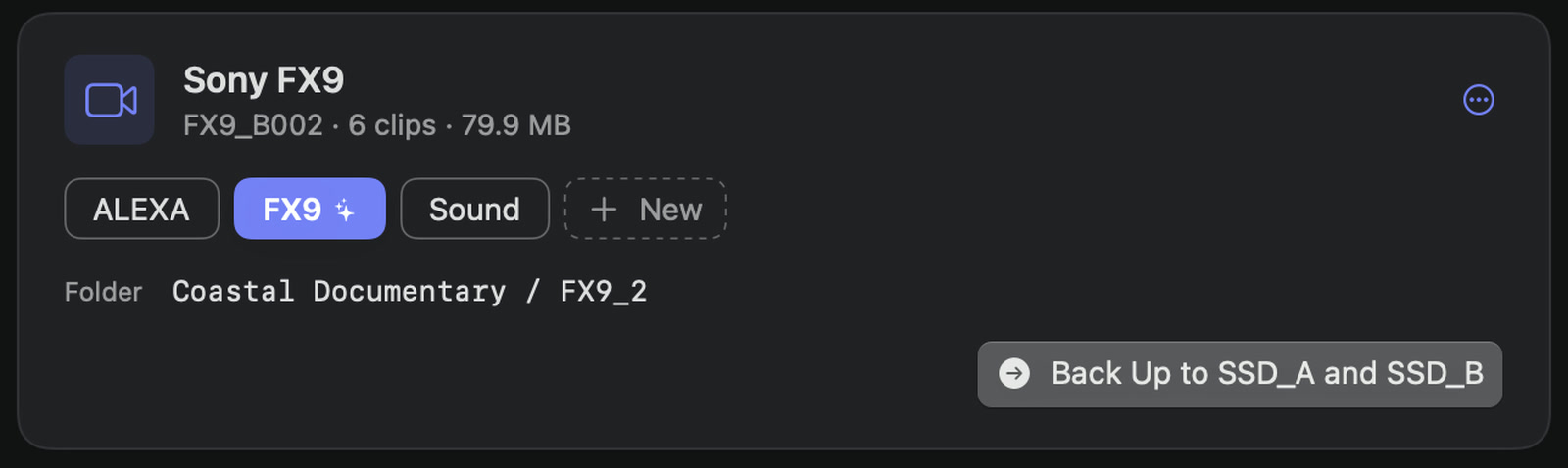
Sansfer suggests a label whenever it can, so most cards need no click at all:
- A camera that was labelled before in this project gets the same label again. Sansfer remembers each camera body by its model and serial number.
- A card with only audio recordings is Sound.
- A camera Sansfer recognises gets its short model name, such as FX9, FX6 or A7R V.
- GoPro and DJI cards are GoPro and Drone.
A suggested label has a small sparkle. Click another label to change it.
Choosing a label yourself
When Sansfer cannot tell what a card is, nothing is chosen: the card shows Label? and the panel asks What is this card?. This happens, for example, with an ARRI ALEXA card in Apple ProRes, which carries no camera model Sansfer can read. Sansfer never guesses here, so a card can never land in another camera's folder by accident.

- Click one of the project's labels, or
- click + New, type a label (for example
ALEXA,B-camorDrone) and press Return.
A new label is added to the project and offered for every card from then on. When the card has a camera Sansfer can identify, that camera is linked to the label, so its next cards are labelled automatically.
Two cards never share a folder
When a second card with the same label is backed up, it gets its own folder: the second ALEXA card of the day goes to ALEXA_2, the third to ALEXA_3. If a card folder already holds a different card, Sansfer moves on to the next free one. If it holds this very card, the copies are checked and skipped instead of duplicated.
Managing labels
A project's labels are listed in its settings (bottom bar, project menu, Project Settings…), under Card labels. There you can rename a label, change its order, see how many cameras it remembers, and remove it. Renaming a label changes the folder of future cards, not of cards already backed up. See Projects.