Part 3 · Organising
Projects
PRO A project keeps a production together: its details, drives, folder structure, card labels, cameras and file names, and every transfer made for it.
Quick copy or a project
On the left of the bottom bar is the project the cards belong to. Click it to switch:
- Quick Copy (No Project): each card lands in a folder with its own name, inside the drive folder. No labels needed. Good for a one-off copy.
- A project from the list: cards land in the project's folder structure, get labels and card numbers, and are counted in the project.
- Project Settings… opens the settings of the current project.
- New Project… creates a project and opens its settings.
Sansfer remembers the last project you used, also after a restart.
Project settings
Everything a production needs on set is in one sheet, set once at the start of a job: open it with Project Settings… in the project menu.
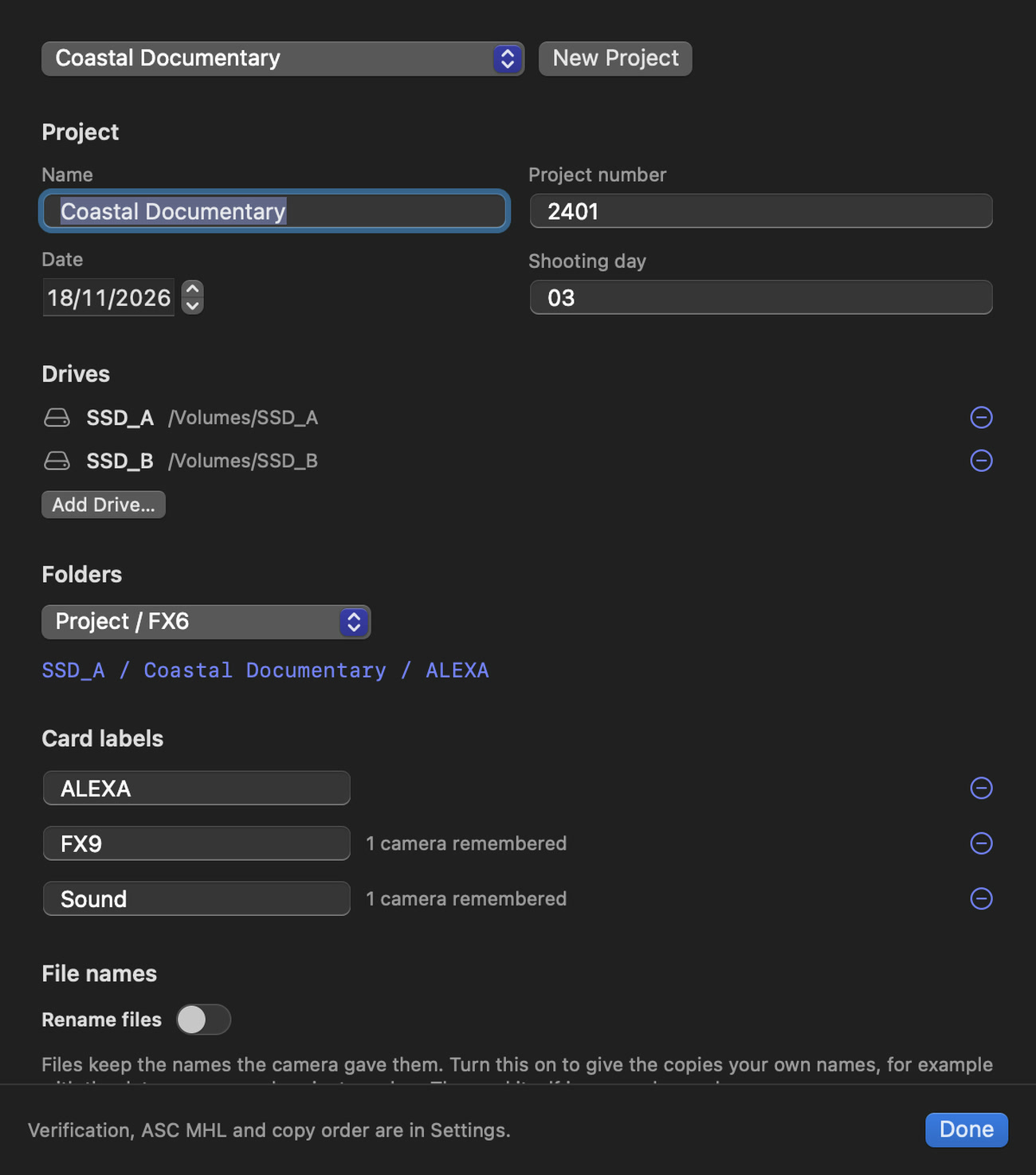
- Project
- The project's name and number, the production date and the shooting day. The menu at the top switches to another project, and New Project starts one.
- Drives
- The drives this project copies to. Add Drive… adds one; the minus button stops copying to a drive.
- Folders
- The folder structure on every drive: Project / FX6, Project / Day 1 / FX6, Project / 2026-11-17 / FX6, or Custom with your own template. The line in blue shows where the next card will land, for example
SSD_A / Coastal Documentary / ALEXA. See Folders and card numbers. - Card labels
- The labels of this project, such as ALEXA, FX9 and Sound, with the number of cameras each one remembers. Rename a label, drag it to change the order, or remove it.
- File names
- Whether the copies keep the camera's names or get your own. See Renaming files.
Checksum, ASC MHL and copy order are not part of a project: they are in the transfer options and Settings, or in a preset.
The Projects section
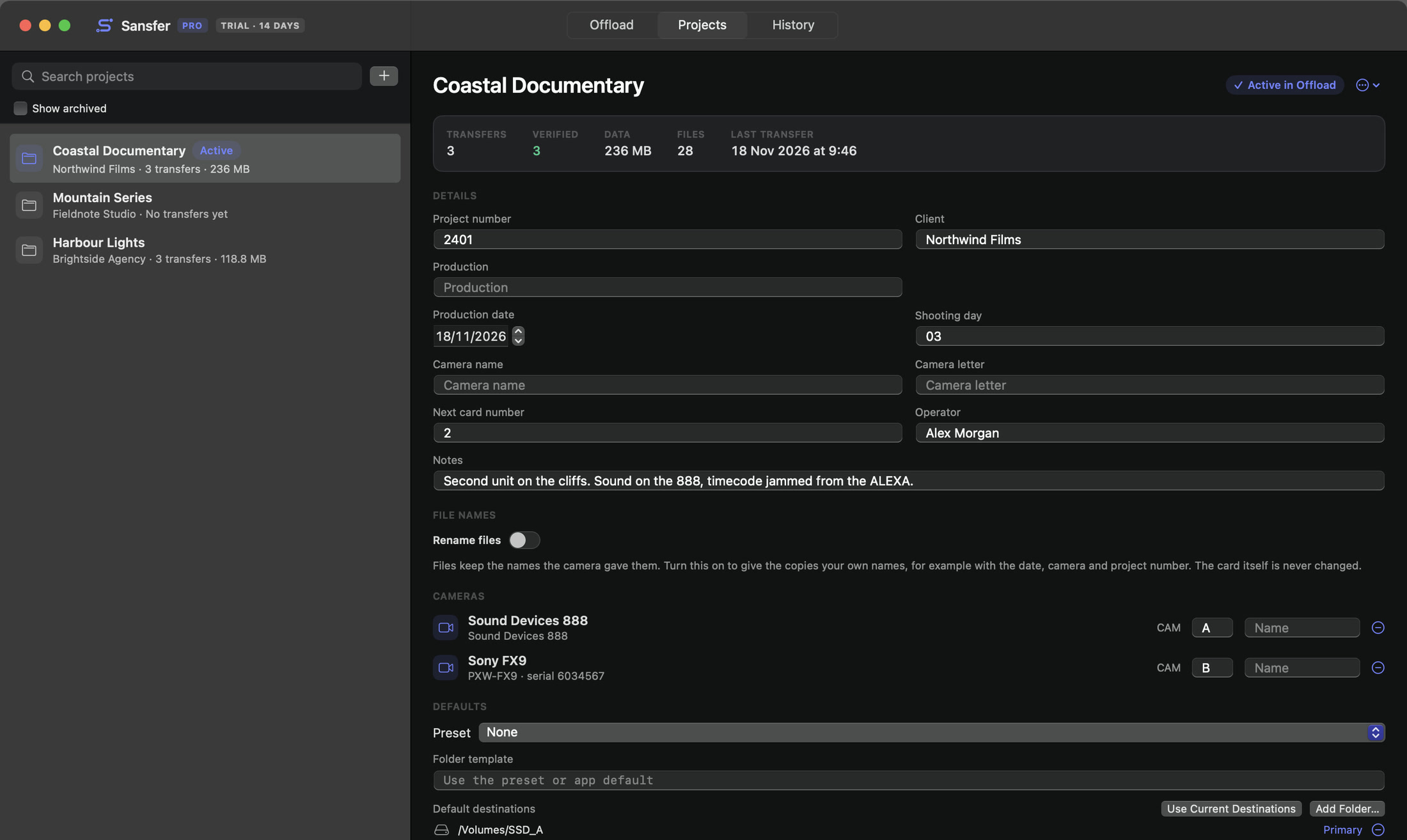
Open Projects in the top bar (⌘2) for an overview of every production and its totals.
The list
Every project with its client, number of transfers and total data. The project in use in Offload is marked Active. Search by name, client or number, and choose Show archived to include finished productions. Click + for a new project. Right-click a project for Use for Offload, Duplicate and Archive.
The project
At the top: the name, Use for Offload (or Active in Offload), and a menu with Duplicate, Archive and Delete Project…. Below it:
| Totals | Transfers, verified transfers, data, files and the last transfer. |
| Details | Project number, client, production, production date, shooting day, camera name and letter, next card number, operator and notes. These fill the variables in folder templates, file names and reports. |
| File names | The project's renaming scheme. |
| Cameras | Every camera body seen in this project, recognised by model and serial number, with its camera letter (A, B…) and an optional name. A new camera gets the next free letter the first time one of its cards is backed up, and keeps it for the rest of the project. |
| Defaults | A preset that is applied when you switch to this project, its folder template, and its default destinations (Use Current Destinations or Add Folder…). |
| Transfers | Every transfer of this project, with date, card, size and result. |
Archiving and deleting
Archive a project when the production is over: it leaves the project menu and the list, but keeps its history and totals. Show archived brings it back; Unarchive makes it active again.
Delete Project… removes the project from Sansfer. Media, manifests, reports and transfer history are not touched.