Part 3 · Organising
16
Presets
A preset bundles how cards are organised and checked: folder structure, naming, copy order, checksum, file rules, reports, notifications and automation. Apply one and everything is set.
Built-in presets
| Preset | What it does | Mode · checksum |
|---|---|---|
| Standard two-drive backup | Primary and backup written at the same time. Folder {project}/{date}/{sourceName}. | Parallel · SHA-256 |
| Documentary production | Organised by shooting day, camera and card. PDF and CSV report in the project folder. | Parallel · SHA-256 |
| Wedding production | Client and date first, one folder per camera card. PDF report. | Parallel · XXH64 |
| Multi-camera production | Day, camera letter and card number, so several cameras never collide. PDF and CSV report. | Parallel · XXH64 |
| Photography import | Still images and their sidecars only; videos and thumbnails are left on the card. | Parallel · XXH64 |
| NAS archive | One destination at a time, safest for network storage. PDF and JSON report. | Sequential · SHA-256 |
| Fast primary SSD with cascading backup | The fastest drive is filled first so the card is free sooner; backups follow from it. PDF report. | Cascading · XXH64 |
Sansfer includes Wedding production and Photography import; Sansfer Pro has all seven, plus your own.
Applying a preset
Open the transfer options in the bottom bar and choose a preset under Preset. Its settings take effect for the next transfer. When you change something afterwards, the preset shows Custom. A project can apply a preset by itself when you switch to it (Defaults in the Projects section).
Managing presets PRO
Choose Manage Presets… under Preset in the transfer options.
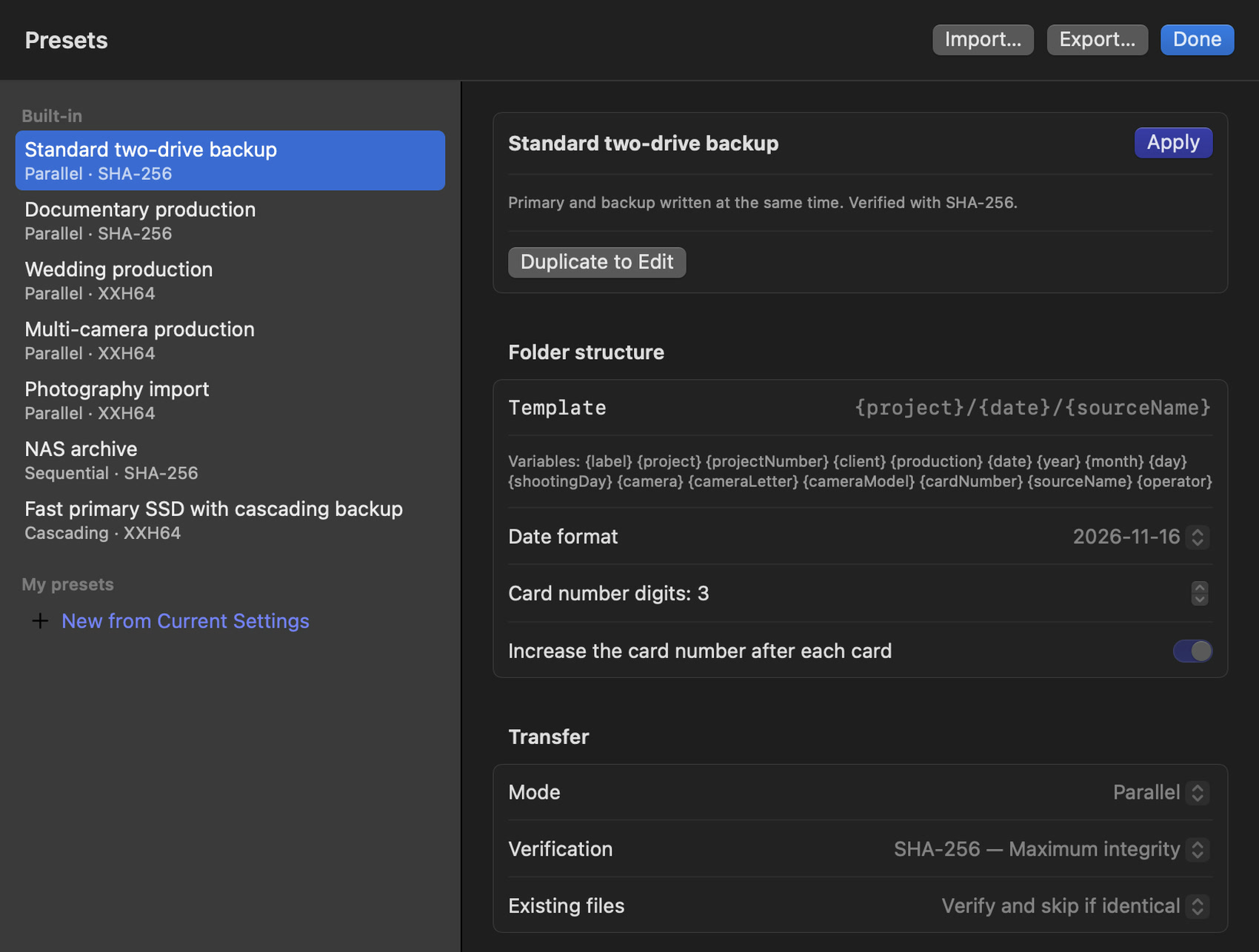
- New from Current Settings saves what you use now as a preset.
- A built-in preset cannot be changed: Duplicate to Edit makes your own copy.
- Apply uses the selected preset now.
- Export… saves the selected preset as a
.sansferpresetfile; Import… reads one. Share them with your team so everyone works the same way. - Delete Preset… removes one of your own presets.
What a preset holds
| Name, description | How it appears in the list. |
| Folder structure | The folder template, date format, card number digits and whether the card number goes up after each card. |
| Transfer | Copy order, checksum and what happens to existing files. |
| Destinations | Drives to use, or none to keep the drives you have. Use Current Destinations fills them in. |
| Files | Only these extensions, or never these extensions. Empty means everything. |
| Reports | PDF, CSV or JSON, in the card folder or the project folder, and notifications when all drives are verified or a transfer fails. |
| Automatic transfer | Use this preset by itself for matching cards (see the next chapter). |